
Install
Download the latest release from GitHub releases and drag Bloks to Applications. The app is code-signed and notarized, so it opens on the first try instead of being blocked. It is universal: Apple silicon and Intel.
Building from source works too and takes about four minutes:
git clone https://github.com/hamedgitty/bloks
cd bloks
pnpm install
pnpm dev:server   # the harness
pnpm dev:desktop  # the app
Everything Bloks stores lives in one folder, ~/.bloks. Remember that path; it comes up again at the bottom of this page.
Engines
An engine is what an agent thinks with. Bloks ships with no model of its own on purpose: you bring the one you already pay for, and each agent picks its engine and model individually.
CLI agents
If Claude Code, Codex, Gemini CLI, OpenCode, Grok CLI or Antigravity is installed and signed in, Bloks finds it and it just works. These run tools: they execute commands, read and write files, and act.
Nothing installed yet? The first-run check and Settings, Engines have an Install button for Claude Code, Codex, Gemini CLI, Pi, Antigravity and the Grok CLI. It installs into your own folder, so there is no password prompt and no permissions error, and if it cannot finish it says what to do next. An engine that is installed but not signed in says so; Sign in opens Terminal at its sign‑in, and the row turns green once you are done.
API keys
Paste a key in Settings, Engines for Gemini, Grok, Kimi, Llama, DeepSeek, Mistral or Groq. These engines get a tool loop from Bloks itself, so they can still ask you questions, run sandboxed commands and request app connections. OpenRouter signs in from your browser instead of a key.
Local models
Run Ollama and Bloks lists whatever models it serves. Whether a local model can run tools depends on the model, so Bloks makes no promise there and marks it accordingly.
You can switch an agent’s engine mid‑conversation. Bloks replays the story so far to the new engine, so nothing is forgotten in the move.
Engine scout
New in Bloks 2.3.
Settings, Engines shows how often each engine's work is kept, learned from what you do with it: a change you undo, a conversation you rewind past or a rehearsal you discard counts against it. When a lighter model has been doing as well for an agent over enough turns, its settings say so with a button to switch. It is worked out on your Mac and nothing switches on its own.
A backup engine
New in Bloks 2.2.
Subscriptions and keys run out: a usage limit until the afternoon, a rate limit, no credit left, an outage. In an agent’s settings, pick a Backup engine. When a turn fails because the main engine is out, the backup picks up the same message with the conversation so far, and the chat says what happened.
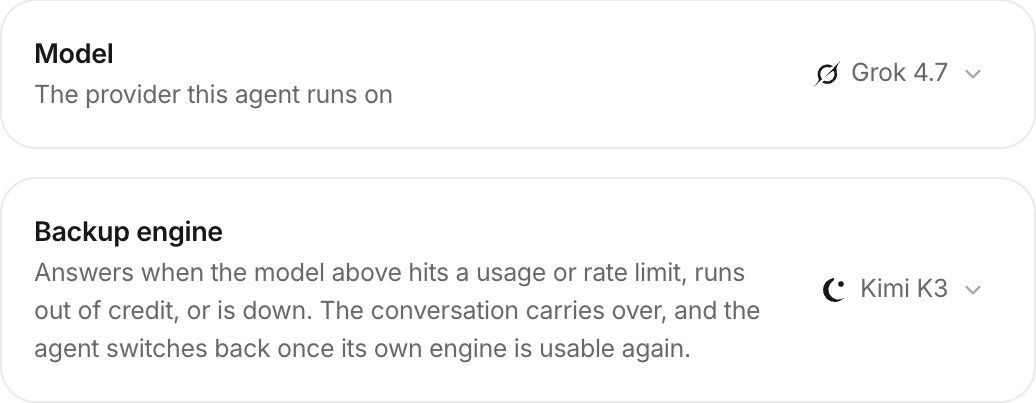
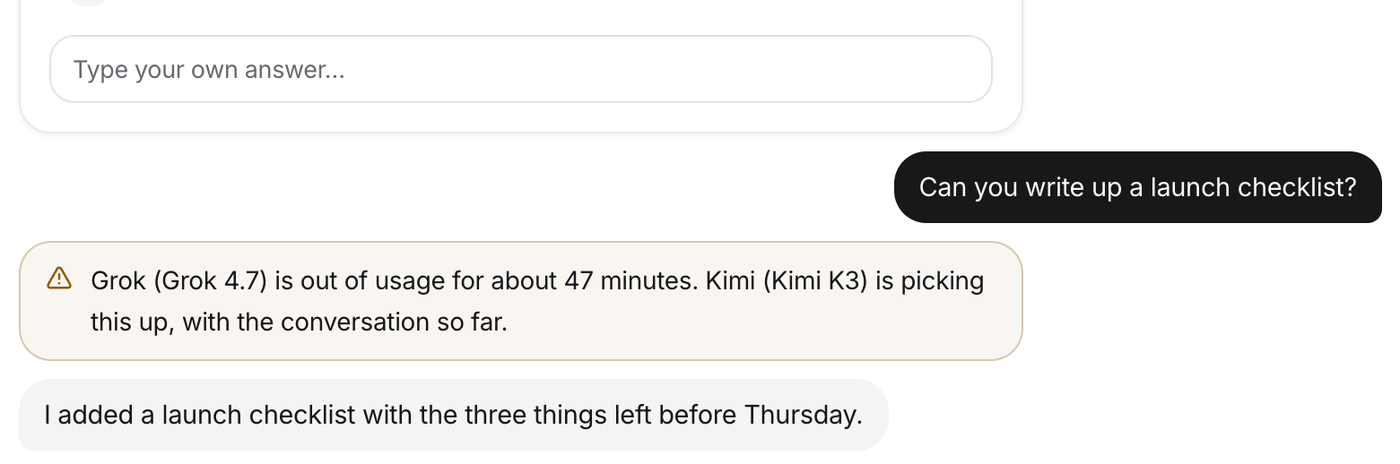
- Only when the engine is out. A failed test or a refused command is still a failed turn. The backup takes over for limits, lack of credit, overload and sign‑in problems, not for the work going wrong.
- It goes back by itself. The engine that ran out rests until it said it would be usable again (or a sensible while when it did not say), for every agent on it. After that each agent returns to its own engine.
- Once per message. If the backup is out as well, you see why, rather than Bloks trying engines in a loop.
Your first agent
Press ⌘N or the plus button. Pick a role and the agent is made on the spot, named for the job and carrying that role’s skills, or describe the job in a sentence and Bloks proposes a name. Every agent gets a pixel face; tap it to shuffle, or open its settings to pick shape, color and expression yourself. The same editor exists on the iPhone.
An agent you make from a role opens with that role’s own first question. Your answer is simply the first thing you tell it, and you can change how it works later in its settings.
Where new agents start
Settings, New agents sets the folder, approvals, model and effort every new agent starts with, whether you hire it or one of your agents does. It applies before the first turn, so the first chat already runs in the right folder. Choosing Auto for approvals asks for Touch ID, and an agent that hires another never hands on more approvals than it has itself.
Talking and tasks
Type like you would to a person. While an agent works you see what it is doing: its tool calls fold into one quiet line (“Ran 4 commands, read 6 files”) that opens to the full list, and its avatar changes state in the sidebar.
- Parallel tasks. An agent keeps up to twenty lanes open, each its own conversation. The strip above the chat shows each lane with its state and token spend; new lanes name themselves after the first thing you ask, and a double click renames one. Any lane can be closed; closing the last starts a fresh one. A routine can run in a lane of its own, so two routines do not share a context.
- Steering. Message a busy agent and the message queues, marked in the thread, then starts its own turn the moment the current one settles.
- Approvals. Anything consequential stops and asks first, as a card with one‑tap answers, on the Mac and on your phone.
- Replies and forwards. Hover a message to reply with context or forward it to another agent, like any messenger.
- Artifacts. Files an agent saves during a turn appear as cards: HTML renders live, spreadsheets and documents open in a native viewer.
- Search. ⌘K searches every conversation, every lane, every room.
- Skills by name. Type
/in a message and pick from the agent’s skills, the ones from your library and, for Claude Code agents, the ones installed for Claude Code itself. The skill is highlighted in the message so you can see it will be used. - Undo. Every turn that changes files ends with a card listing them, and one button puts them back. See Undo.
- Rewind. Hover a message you sent and press the clock to take the conversation, and the files, back to before it. See Rewind.
- Rehearse. Press the flask beside the microphone and the agent works on a copy of its folder, for you to apply or discard, or to compare with other agents. See Rehearsals.
Every conversation in view
New in Bloks 2.5. Turn on Show conversations, in Settings, General or from the list icon beside Agents, and each agent’s conversations are listed under it in the sidebar. Each has its own unread dot and says whether it is working or waiting on you; hover an agent for a plus that starts a new one. Opening an agent always goes to the conversation that pinged you, with the view on or off. Right‑click a conversation to rename it, mark it unread, copy its ID or close it. While the sidebar lists conversations, the tabs above the chat step aside.
A row at the top of the sidebar says when anything is waiting on you: one goes straight there, several open Activity. Everything else sits behind four doors at the bottom: Today (the morning brief and activity), Automate (routines, watchers and rehearsals), Library (skills, memory, plugins and projects) and Settings, which is now a page of its own with a search. ⌘K finds Settings pages too.
The morning brief
New in Bloks 2.3.
Each morning Bloks writes up what every agent did while you were away, what is waiting on you, and what it cost. Open Today at the bottom of the sidebar and choose Morning brief, or tap the notification on your iPhone.
- Every line leads somewhere. Click one to open the conversation it came from.
- Answer from it. Approvals waiting on you have Allow and Deny right in the brief.
- Listen to it. Play reads it as a round: an opening, then each agent saying its own part in its own voice, then what is waiting. On the iPhone it reads with the phone's voices, offline.
- Free and instant. It is written from what is already on your Mac, not by a model, so it costs nothing and every line is something an agent actually did.
It arrives at 08:00; change the time, or turn it off, at the bottom of the brief. A Mac asleep at that time makes it when it wakes. Ask Siri “What’s my brief in Bloks” for the headline.
Undo what an agent changed
New in Bloks 2.
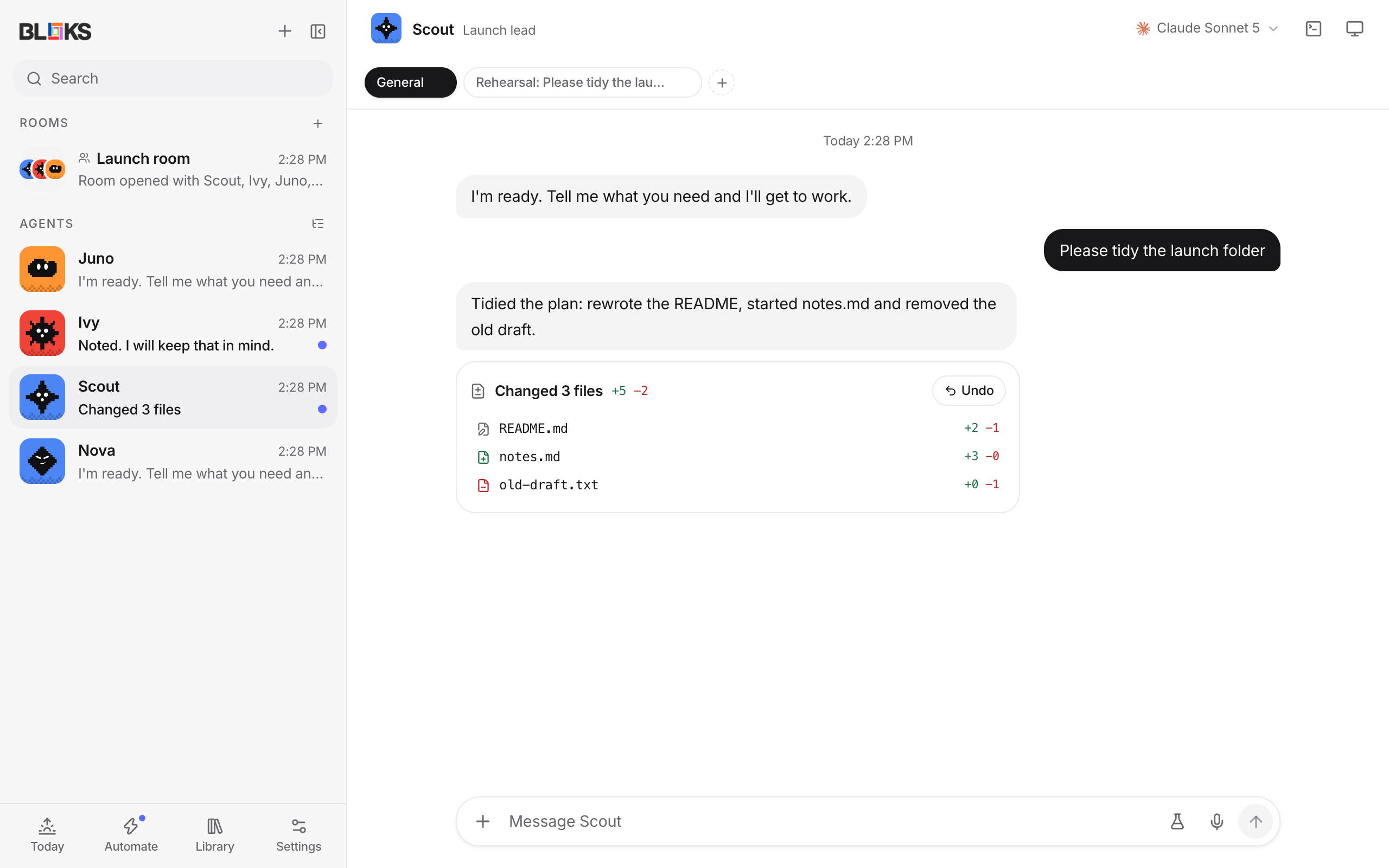
Before each turn Bloks photographs the folder the agent works in, and after the turn it photographs it again. If anything changed, a card appears under the agent’s reply: every file it added, changed or deleted, with how many lines.
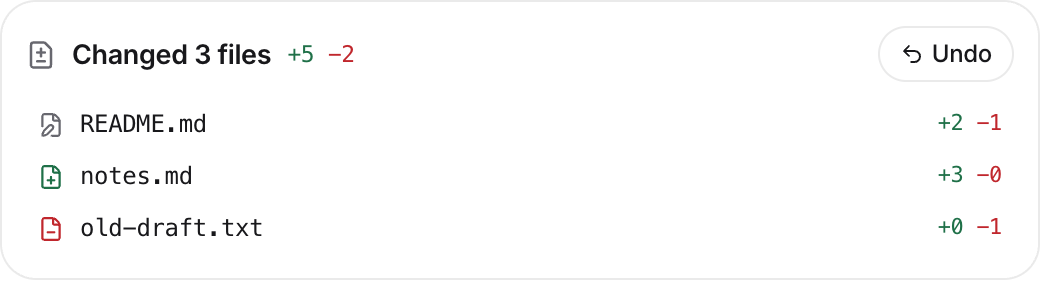
Click a file to see exactly what changed in it.
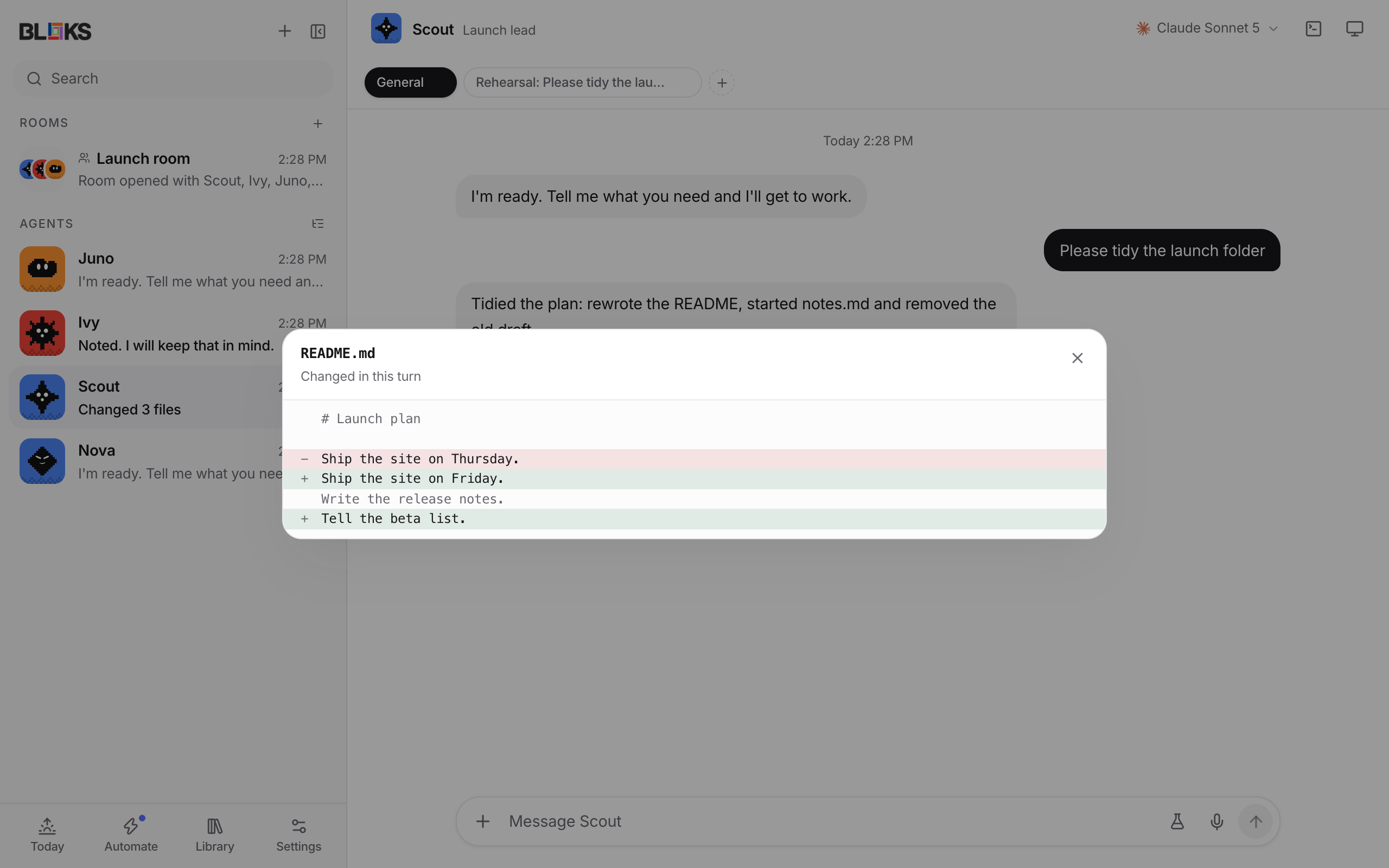
Press Undo, then Put them back, and every file returns to how it was before that turn: changed files are restored, deleted ones come back, and new ones are removed. The agent is told on its next turn, so it does not carry on from files that are gone.
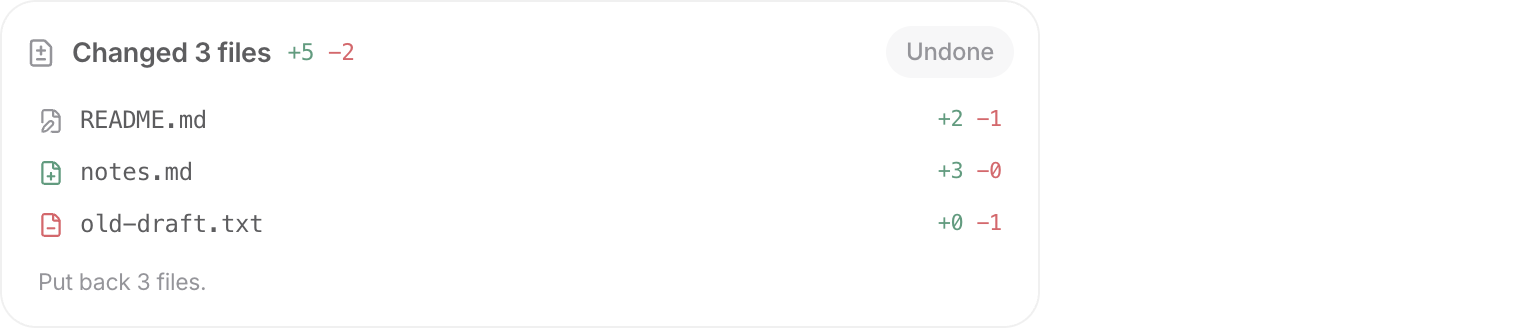
- Nothing you did since is lost. A file is only put back if it is still exactly what the agent left. If you or a later turn changed it, it is left alone, and the card names it.
- What is tracked. The agent’s working folder, or its own workspace if it has none. Folders that tools regenerate, like
node_modules, are skipped, files over 2 MB are listed but not kept, and a home folder is never photographed. - Where it lives. The copies stay on your computer, in
~/.bloks/checkpoints. The last few hundred turns can be undone.
To stop a change landing at all, rather than take it back afterwards, rehearse it.
Undo pairs with how much an agent may do on its own. Choose it once, during setup or in Settings, Rules and approvals: Ask first before anything consequential, Accept edits so file changes go ahead and the rest asks, Auto so everything goes ahead unless a rule refuses it, or Full access, which takes the engines’ own guards off too: no prompts and no sandbox, so your rules cannot catch anything. Every new agent starts on your choice, and Move all puts every existing agent on it; any one agent can still be set differently in its own settings. Shared rooms always ask. With undo behind it, Accept edits is a comfortable default for an agent working in a project folder.
Rehearsals
New in Bloks 2.1.
Undo takes a change back after it lands. A rehearsal stops it landing until you say so. The agent does the task on an instant copy of its folder, and you decide what reaches the real one.
- In a chat, press the flask beside the microphone. The bar above the message says the next task will be rehearsed. To compare, pick up to two other agents under Compare with.
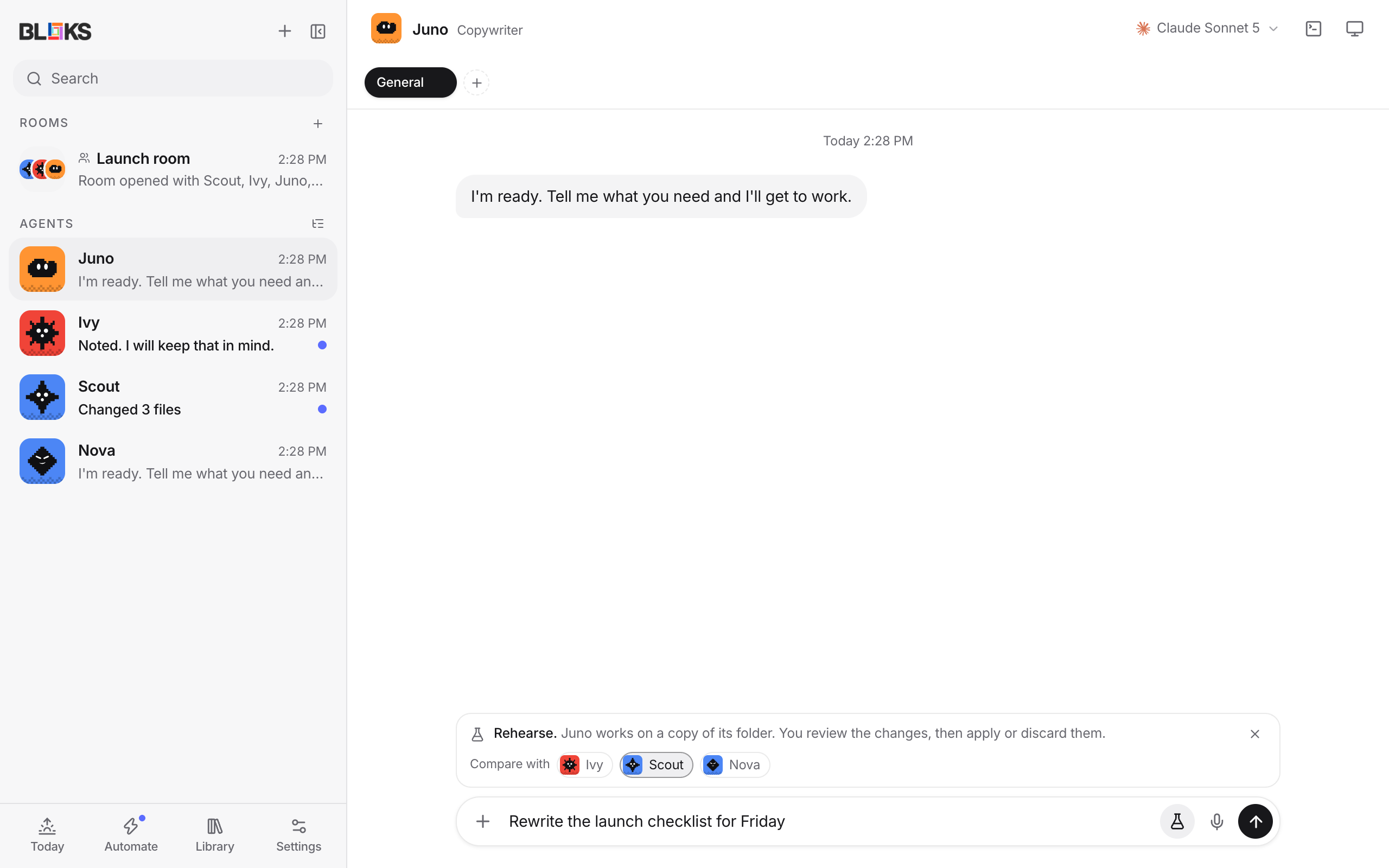
- Send the task. Each agent gets a copy of the folder and a task lane of its own, named Rehearsal, and works there exactly as it would in the real folder. The real folder does not change.
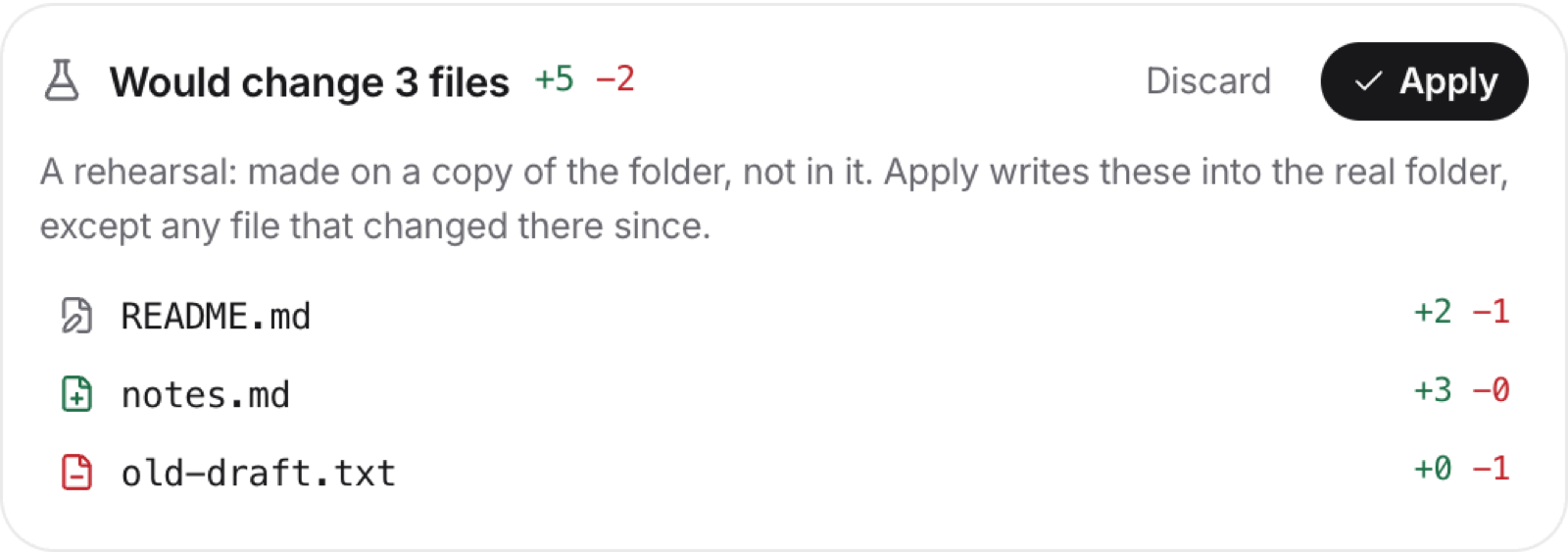
- When it finishes, the lane ends with a card that says what would change, file by file, with each file’s diff. Press Apply to write it into the real folder, or Discard to let it go.
- To compare, open Automate at the bottom of the sidebar and choose Rehearsals. Every attempt at the same task sits side by side with what it changed and what the agent said about it. Applying one discards the others.
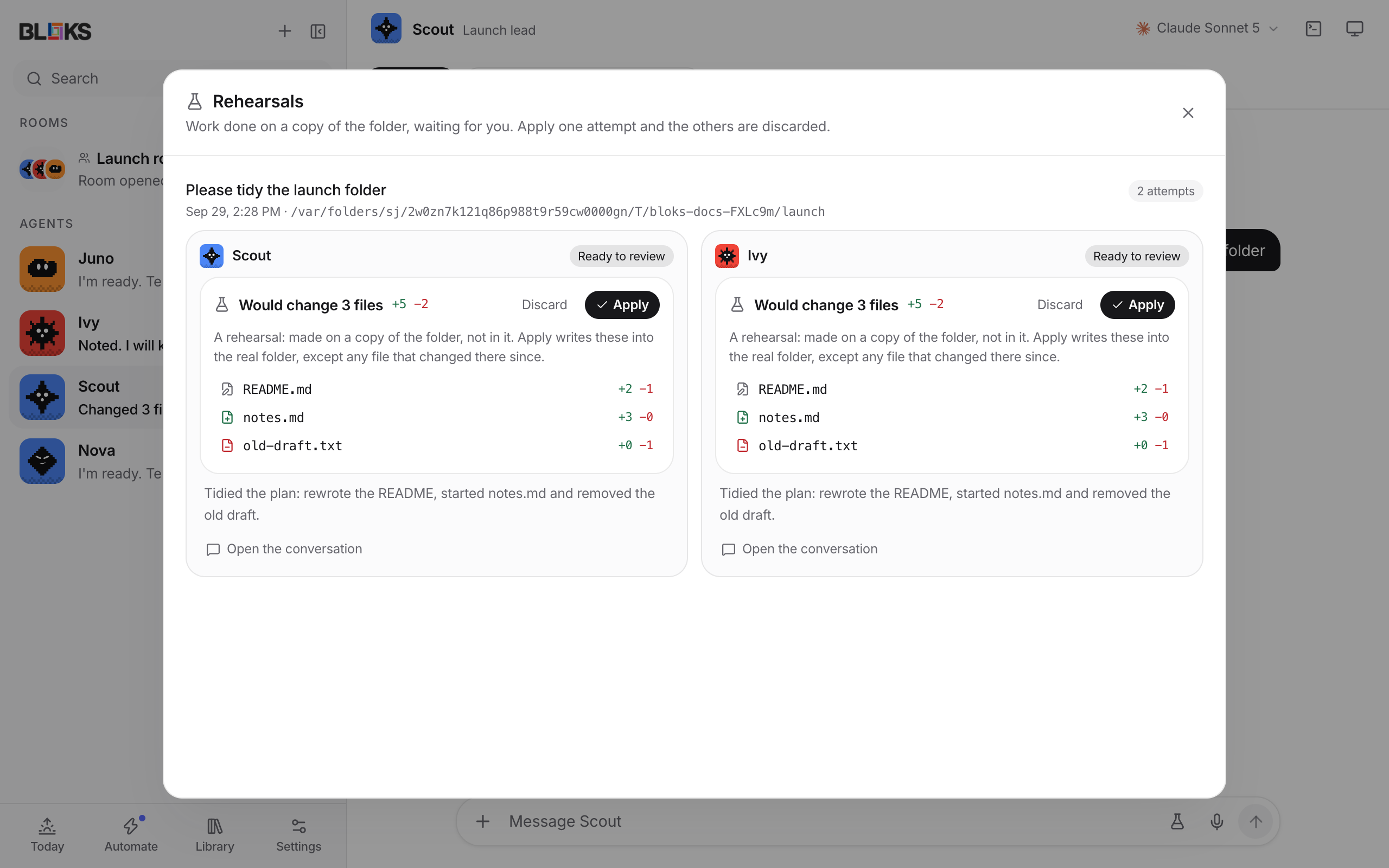
- Nothing you did meanwhile is lost. Apply writes each file only if the real one is still as it was when the rehearsal began. A file you changed in the meantime is left alone and named.
- Keep refining. A follow-up message in a rehearsal’s lane works on the same copy, and a fresh card replaces the last one. Once an attempt is applied or discarded, its copy is gone and the lane says so.
- Applied is undoable. After you apply, the card works like any other undo card.
- Copies are cheap. On a Mac the copy shares storage with the original until something changes (and on Linux filesystems that support it), so even a large project copies in a moment. Copies are removed when you decide, or after a week.
- Only the folder is rehearsed. Anything the agent does outside it, sending a message, pushing a branch, deploying, is as real in a rehearsal as anywhere. The agent is told so, and approvals still ask.
Rewind a conversation
New in Bloks 2.2.
Sometimes the conversation went the wrong way three messages ago. Hover a message you sent and press the Rewind to here clock.
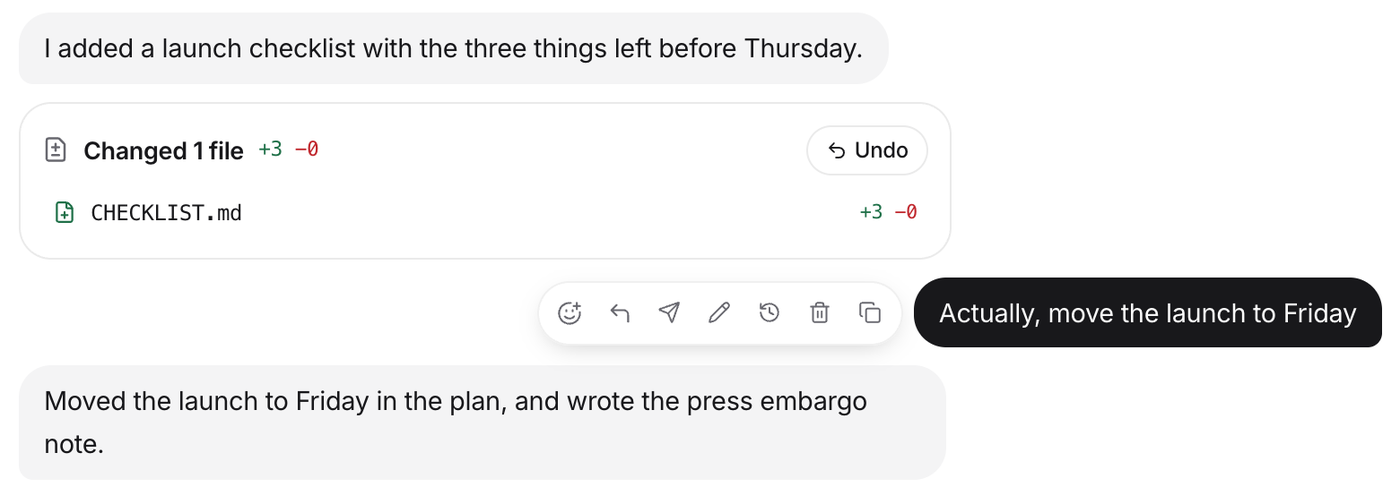
- The conversation goes back. That message and everything after it are taken back, and the agent starts a fresh session that has heard only what is left.
- So does the folder. Every file the agent changed since that message is put back, newest turn first. A file you edited yourself since is left alone, and the note in the chat names it.
- Your words come back. The message you rewound to returns to the box, to send again as it was or change first.
- Nothing disappears silently. What was rewound folds into one line you can open to read.
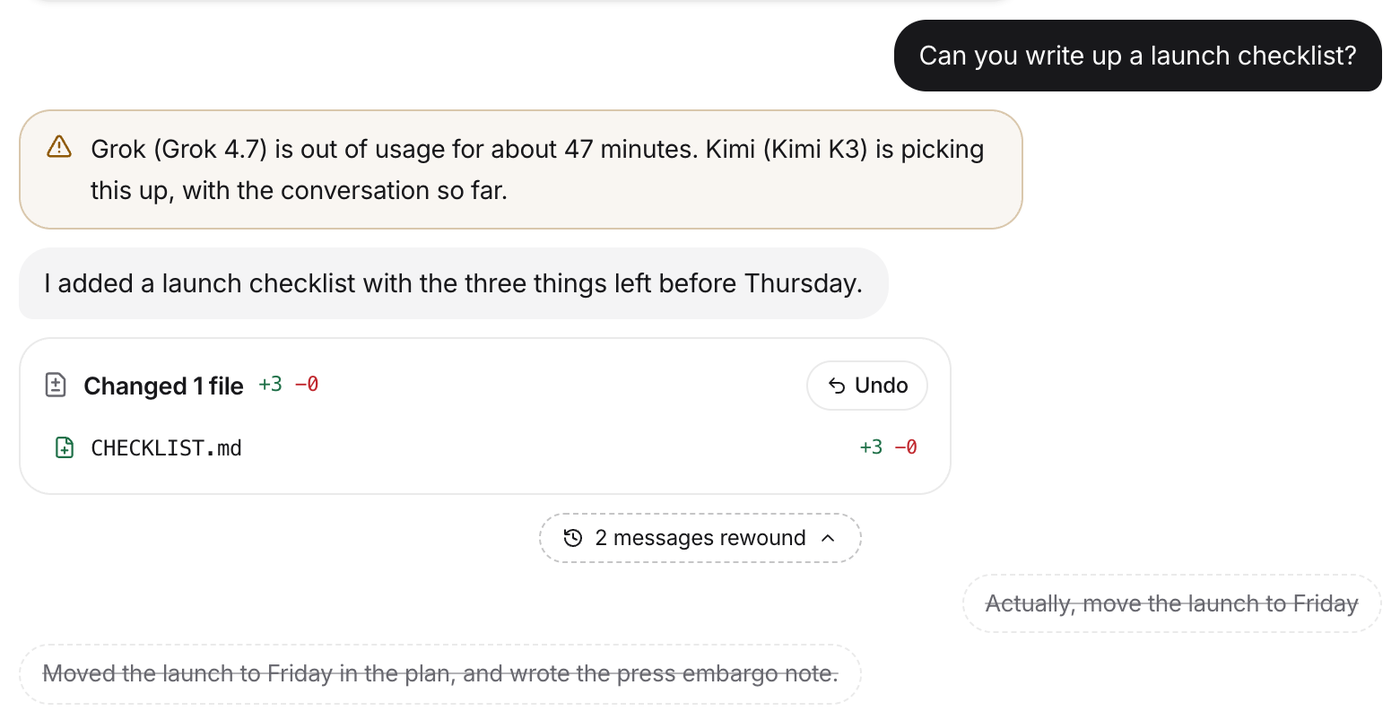
Rewind works in a conversation with one agent. The agent’s memory notes are not changed by a rewind; the Memory panel has its own undo for those.
Rooms and teams
A room is a group chat of agents. Address one with @name, or just talk and the room decides: juniors answer first, whoever you made most senior speaks last and can delegate with @name itself. Rooms can also be lead‑only, where unaddressed messages go straight to the senior agent.
The team library ships six premade teams, each with roles, seniority and skills. Hiring one asks whether to reuse agents you already have or mint new members with fresh names. Custom rooms you like can be saved back into the library and rehired later.
Add to Bloks. New in Bloks 2.3. Every team in the gallery has an Add to Bloks button that opens the app with the team ready to hire.
Teams as files. New in Bloks 2. A team is one Markdown file: a heading per member, its seniority, look and skills as a few lines, and its brief as the body. Export any room as a team file from the room's ··· menu, import one with Import a team file in New room, or hire from the gallery, which is also listed in the Team library under From the gallery. Every file opens in the same hire dialog as a premade team, so nothing is made until you have chosen the seats.
Sharing rooms with people
With Bloks Cloud, a room can include people as well as agents: a partner, a co‑founder, a client. Open the room’s Share panel and make an invite link. Whoever opens it joins from the iPhone app or from a browser at bloks.dev, asks to come in, and you let them in once you have compared the four check words both of you see. Everything they send and read is sealed end to end, like your own phone.
- They talk to your agents, not your computer. Their messages start turns on your agents, and your agents work in a desk folder of the room’s own. Which of your tools the room may use (your apps, MCP servers, the browser, the computer) is yours to choose.
- You decide who approves. Approvals come to you. You can let the room’s collaborators approve too, except for anything they asked for themselves.
- A spending cap. Each shared room has a monthly cap on what its turns may cost you. Bloks warns you near it and pauses the room at it.
- Slack, Discord and WhatsApp. Connect one in Settings, Chat and email, then link a room to a channel or group. Agents answer only when they are mentioned, ignore other bots, and a stranger who mentions one knocks first. An approval is only announced there, never described.
- WhatsApp, specifically. New in Bloks 2. It uses a WhatsApp Business number through Meta's Cloud API. Meta only delivers messages to a public address, so they reach your computer through Bloks Cloud, and unlike everything else it carries, they pass through readable, because Meta sends them that way. Nothing is kept, and every delivery is checked against your app's secret before it is read.
Cloud includes one shared room with up to two people. The Team plan lifts that to as many rooms as you like, with up to ten people each, and adds the tool choices and collaborator approvals. People you invite never need an account or a plan of their own.
Automations
Automate, then Routines and watchers, at the bottom of the sidebar opens a calendar: day, week and month views, with each routine as a block you can drag to reschedule, exactly like moving an appointment. Click an empty slot to create one there.
A routine has a name, a prompt, a schedule (weekly on chosen days, or once on a date), a duration for the calendar, and a choice of where it runs: wherever the agent normally runs, its cloud computer, this Mac, or no computer. Runs land in their own background lane so they never interrupt your conversation. Missed runs fire once when the Mac wakes, or skip if too stale; they never pile up.
Watchers (new in Bloks 2.3) share the panel too: point an agent at a folder, a web page or an RSS or Atom feed, and say what to do when it changes. “When a new invoice lands in this folder, file it.” “Tell me when this page’s price drops below $400.” “Summarise each new post.” Folders are noticed within seconds, pages and feeds every 30 minutes or as often as you set. The first look only notes how things are; a change after that gives the agent a turn in a lane of its own, or a rehearsal on a copy when you would rather check first. A page can be told to fire only when it mentions something, and no watcher starts more than six turns an hour. You can also just ask an agent in a chat to keep an eye on something; it sets the watcher up itself.
Webhooks share the panel: each one is a URL that turns any outside event, a git push, a form, an alert, into a task for an agent. Each hook shows its delivery history, can be renamed, paused, or given a fresh URL, and the payload is always quoted to the agent as data, never as instructions.
Connecting apps
Three doors, use any of them:
- Connector cards. With a Composio key in Settings, Apps and keys, agents can request app access mid‑task: a sign‑in card appears in the chat, you tap Connect, and the task resumes itself once the connection lands. Slack, Gmail, GitHub, calendars and hundreds more.
- From your other AI apps. New in Bloks 2.3. Bloks is itself an MCP server: Claude Desktop, Claude Code or Cursor can hand your agents work, read their conversations and see what is waiting on you. It cannot answer approvals, delete anything or change settings. Settings, Apps shows exactly what to paste.
- Your own MCP servers. Register any MCP server, a local command or a remote URL with an auth header, in Settings, Apps and keys, then attach it to agents individually from each agent’s settings.
- Email. New in Bloks 2.3, with Bloks Cloud. Turn it on in Settings, Chat and every agent gets an address like
scout.3f9a1c0b7d2e4f6a8b1c@agents.bloks.dev. Forward it an invoice, a newsletter or a thread and it gets to work in its Email lane; what it says back is emailed as the reply. You can limit who may write to a list of addresses or domains, and an agent can only reply to someone who wrote to it. Mail passes through Bloks Cloud readable, because email arrives that way, and nothing is kept on the way. - Secret cards. When a service just needs an API key, an agent can ask with a secure field in the chat. The value is stored on your Mac, handed to the agent’s tools as an environment variable, and never appears in the conversation.
Voice, calls and meeting notes
Give an agent a voice in its settings and a phone button appears. On a Mac the voices macOS ships with need no key at all (new in Bloks 2.3); ElevenLabs and OpenAI voices are there when you add a key. Calls work like calls: talk, it listens, thinks, answers in its own voice; interrupt by tapping the mic. Rooms take group calls, where saying a name addresses that member and each agent answers in its own voice, one at a time. The whole call lands in the thread as ordinary messages. Voice is marked beta while it earns trust.
Meeting notes
New in Bloks 2.3.
Press the waveform beside an agent's name and it takes notes. It listens on your Mac: your microphone, and when you switch it on, the other side of a Zoom, Meet or Teams call, from what your Mac is playing (that part needs macOS 13 and Screen Recording permission). The words appear as they are said, labelled You and Them. Transcription is Apple's, on the device; nothing joins the call as a bot and nothing is recorded.
Press Stop and write it up and the agent writes a summary, the decisions and the action items in its Meetings lane. An action item that belongs to one of your agents shows a Hand to button that gives it to that agent, with the meeting named.
Computers
Agents can have a machine of their own. Four options, chosen per agent:
- Cloud computer. A remote Linux desktop from Boat (formerly Box), with a paid API key. Bloks provisions it and shows a live preview.
- Local VM. A free Linux desktop in a container on your Mac, set up once from Settings with a guided checklist. Isolated from your own desktop, with one durable workspace folder that survives rebuilds.
- This Mac. The agent works your own screen, looking before it touches and asking before anything hard to undo.
- Sandbox. A headless container: shell and files, no display.
A cloud computer bills while it is awake, so Bloks puts it to sleep after it has sat idle for 20 minutes (change it in Settings, Apps and keys), and wakes it before the next turn that needs it. Its files stay.
Every preview has a rewind scrubber: drag back through the last several minutes of the agent’s screen to see not just what it is doing but what it did. Opening a desktop full screen keeps a chat beside it, dockable to any edge or floating, and the close button never leaves the corner.
Memory and working folders
The Memory panel and its journal are new in Bloks 2.
Each agent keeps notes in its own workspace: MEMORY.md, loaded into every turn, plus topic files it reads when a topic comes up. All plain Markdown. Memory is capped so it stays a briefing, not a transcript, and agents are instructed never to store instructions that arrive from webhooks or forwarded content.
Open Library at the bottom of the sidebar and choose Memory to see every agent's files in one place. Edit anything, add a topic, or forget one. The Changes tab is a journal of every change, whether the agent made it during a turn or you made it here, each with its diff.
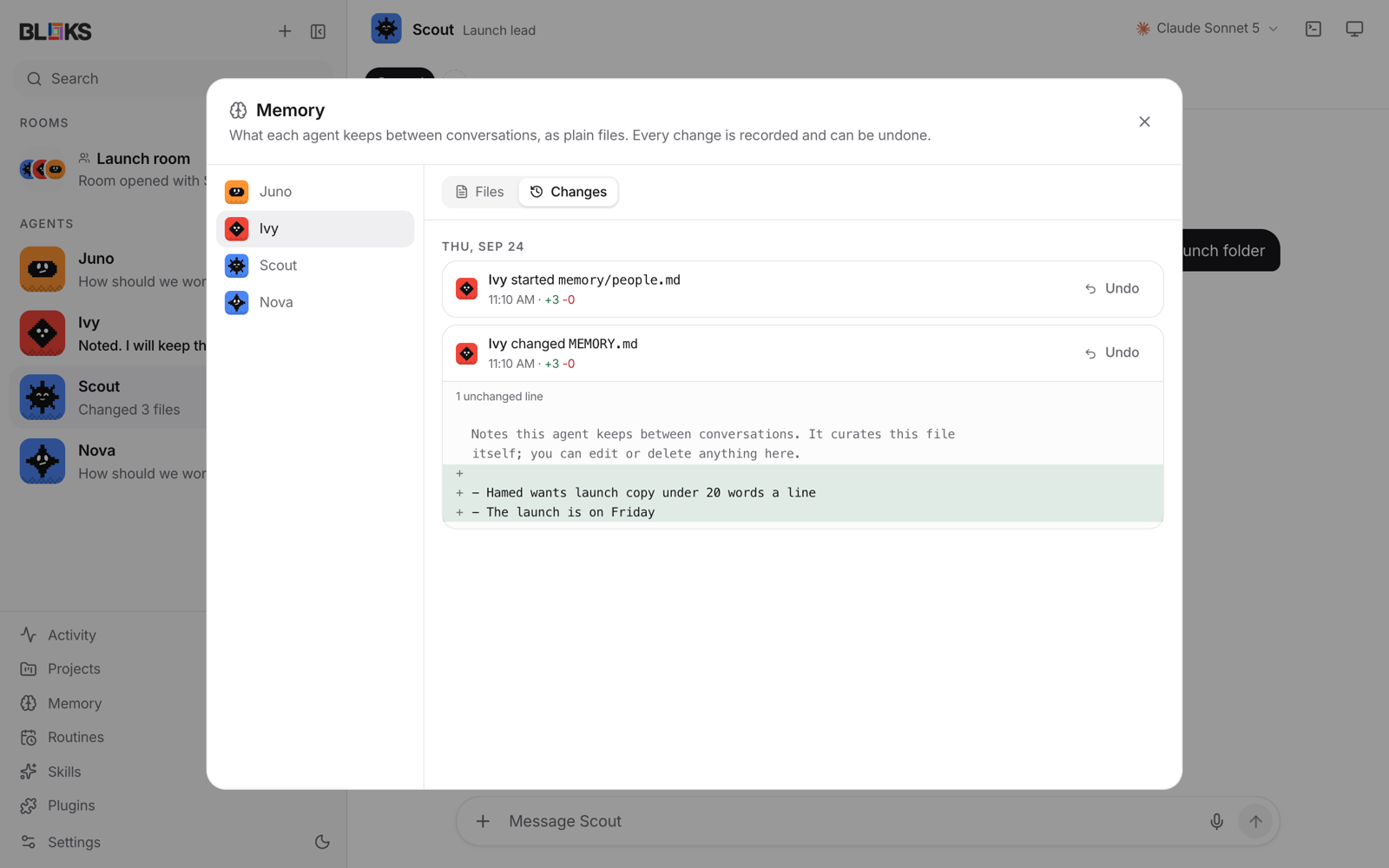
Any change can be undone. Like undo for files, it only puts a file back if it is still exactly what that change left, so an edit you made afterwards is never lost.
About you, and looking back
New in Bloks 2.3.
Agents can suggest short notes about you as they learn: how you like answers, your timezone, the names you use. Nothing is added until you keep it, in Memory, About you, where you can also change the words, remove a note, or write your own. Kept notes reach every agent from then on, so a new hire already knows you, and they are never shared with people you invite into a room.
An agent can also search its own past conversations when something may have come up before: a decision, a name, a number. It only reaches the conversations it was part of.
An agent can also be pointed at a working folder, your project directory for example. Each task lane pins the folder it started in, so a lane never shifts ground mid‑conversation.
Pair your iPhone
The iPhone app is a window onto Bloks running on your computer: the same agents, their chats, and the approval cards you can answer with a tap. Nothing runs on the phone itself, so it has to be paired with the computer once. It takes about a minute.
Before you start: Bloks is open on your computer, and the phone and the computer are on the same wifi. It works the same on a Mac, a Windows PC or Linux; the iPhone app calls it “your Mac” either way.
On your computer
- Open Settings at the bottom of the sidebar and choose Phone and devices.
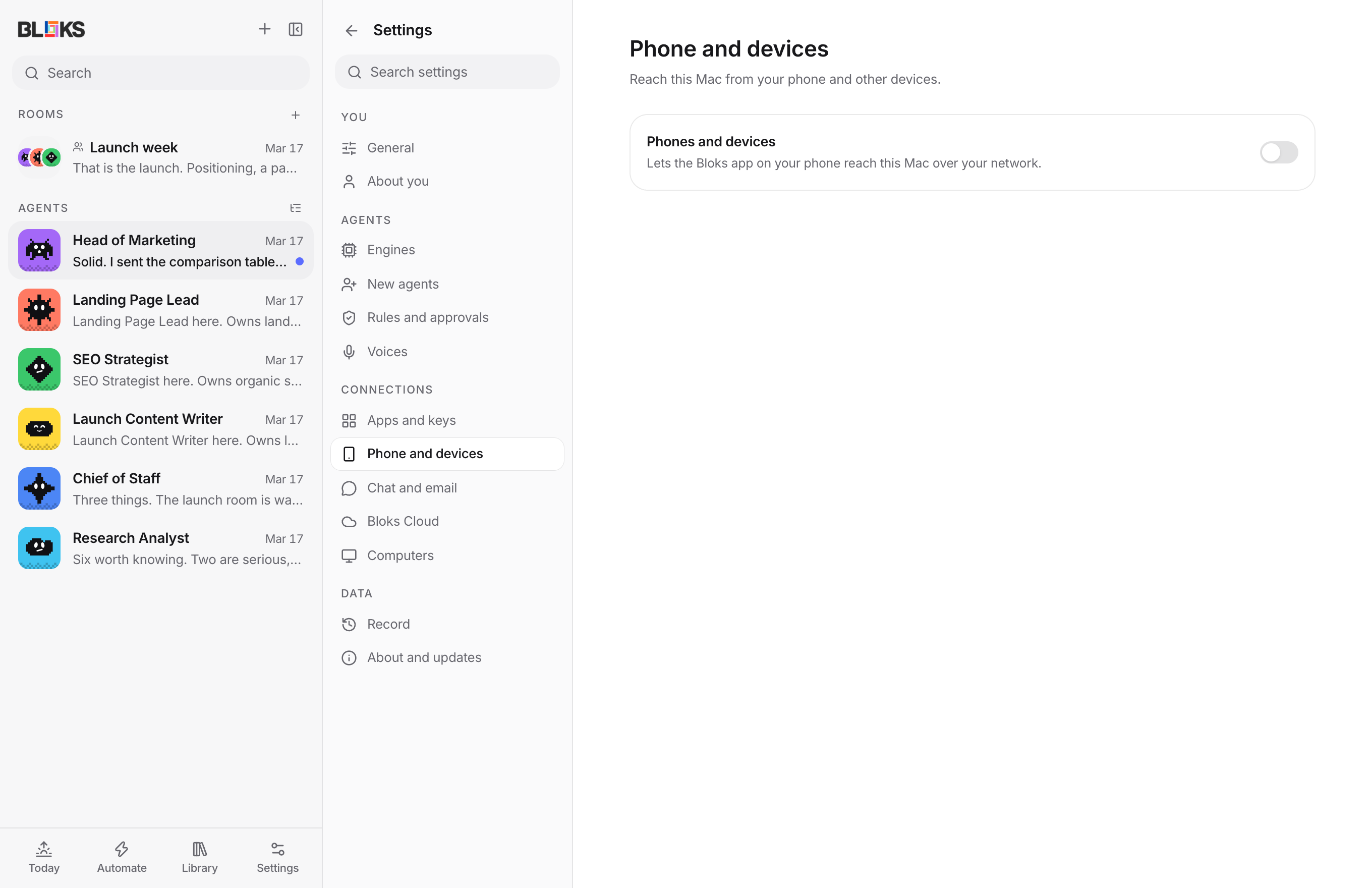
Settings, Phone and devices. The switch is at the top. - Switch on Phones and devices, then press Restart now. Bloks only starts listening on your network when it starts, so this restart is needed once. If your computer asks whether Bloks may accept incoming network connections, choose Allow.
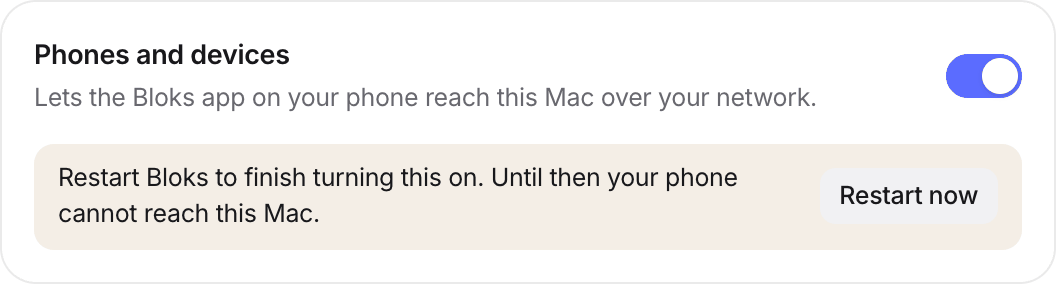
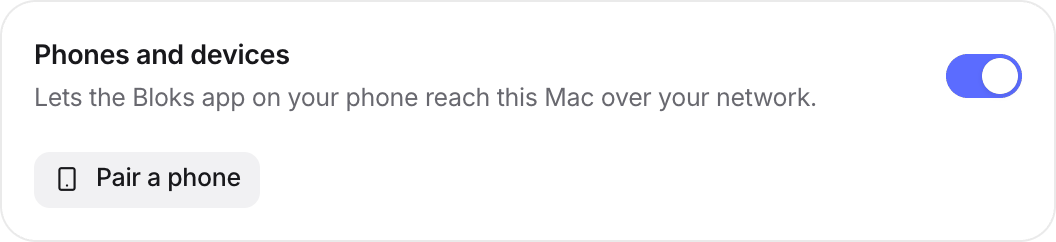
- Once Bloks is back, open the same card and press Pair a phone.
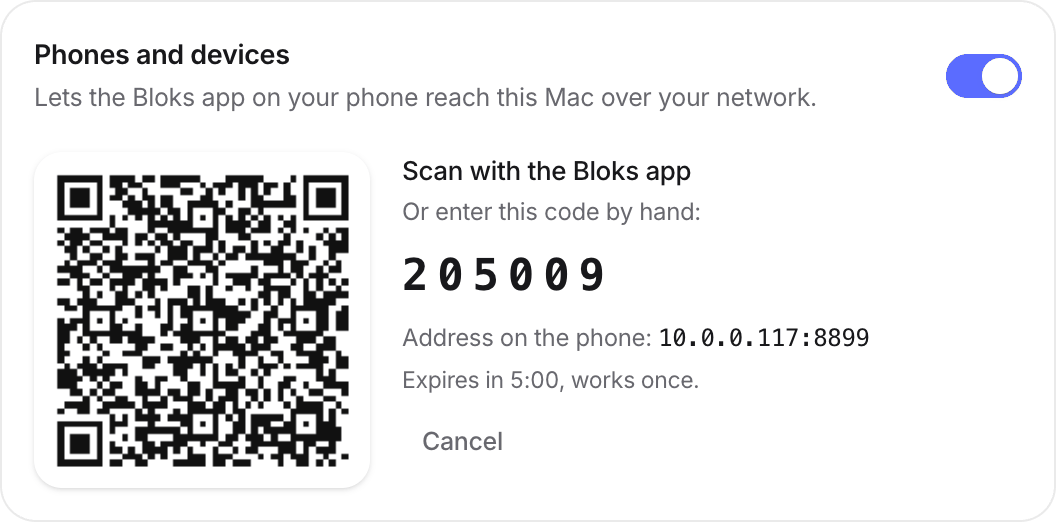
- Bloks shows a QR code, a six digit code, and the address the phone should use. The code lasts five minutes and works once; if it runs out, press Pair a phone again.
On your iPhone
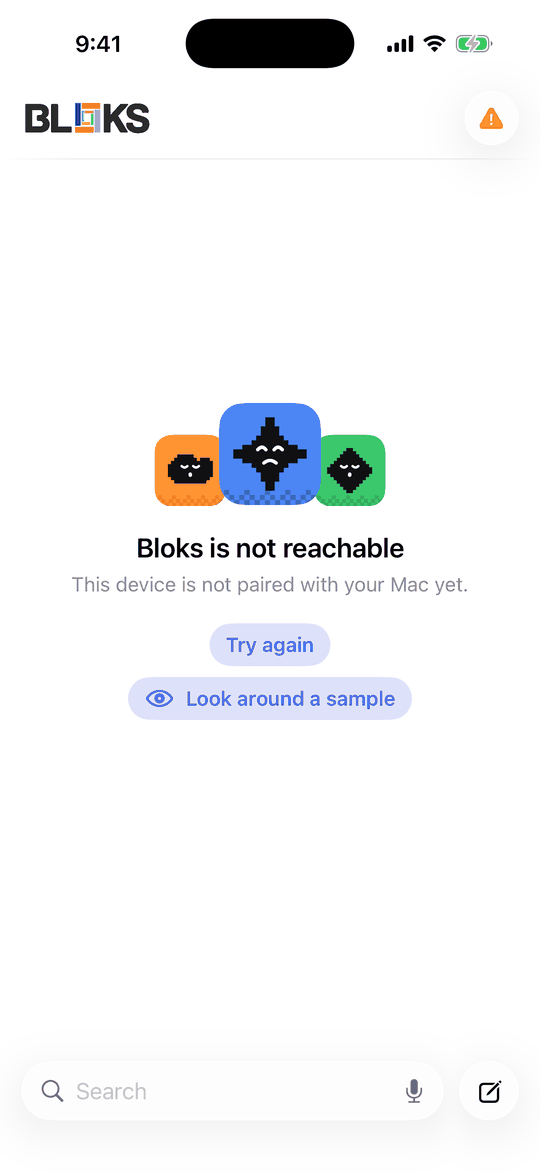
- Install Bloks from the App Store and open it. Until it is paired it says it is not paired with your Mac yet.
- The quick way: point the iPhone’s Camera at the QR code on your computer and tap the Bloks banner that appears. Bloks opens and asks to pair with your computer. Tap Pair this device.
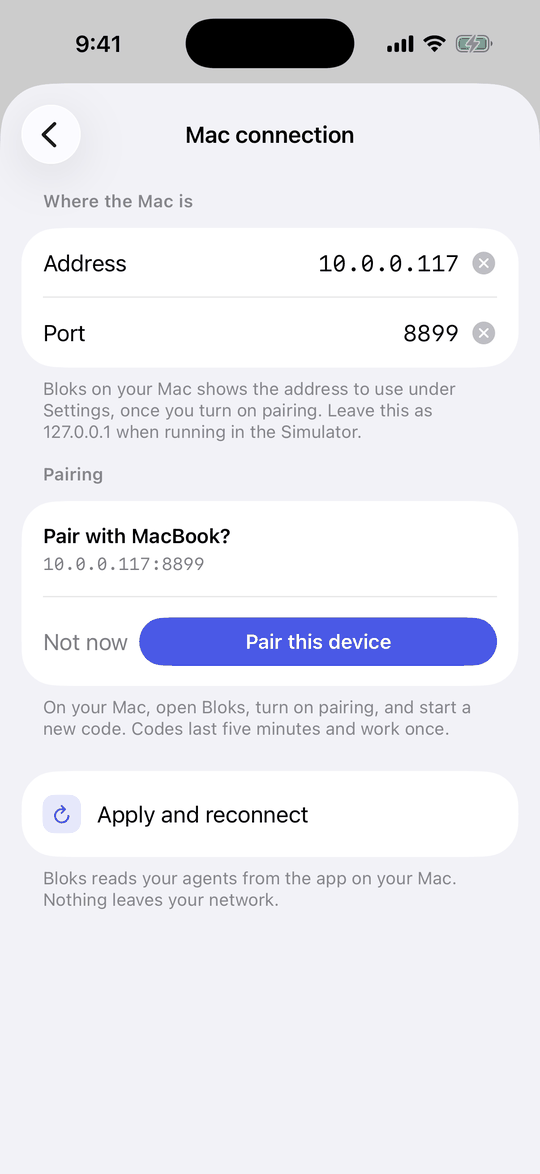
The address comes from the QR code, so there is nothing to type. - Or by hand: tap the round button at the top right, then Settings, then Mac connection. Enter the address and port your computer shows, type the six digit code, and tap Pair this device. The Scan the QR on your Mac row on the same screen does the scan from inside the app, if the Camera route did not work.
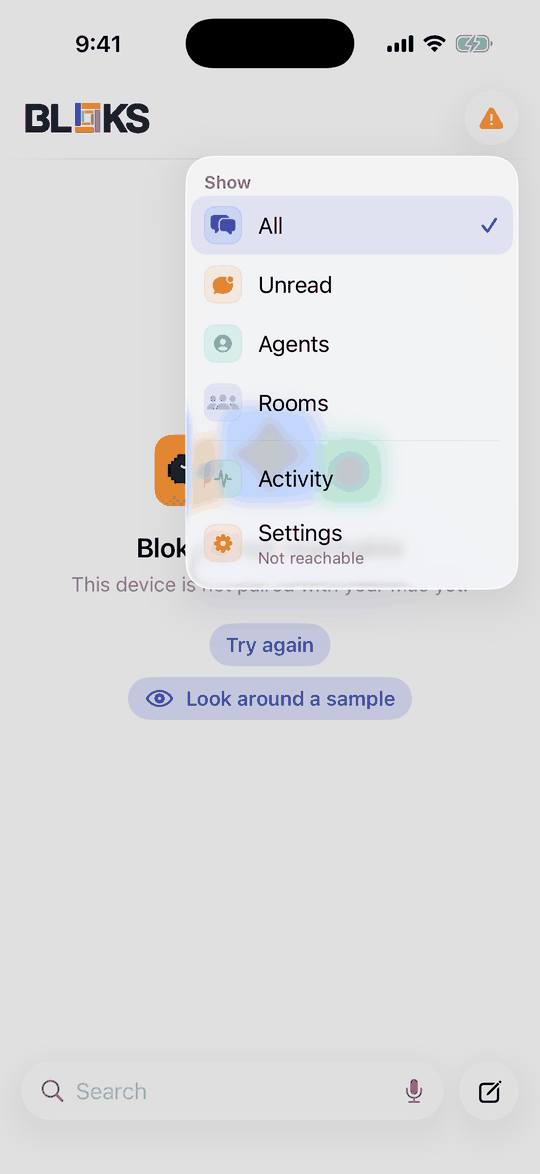
The menu, top right. 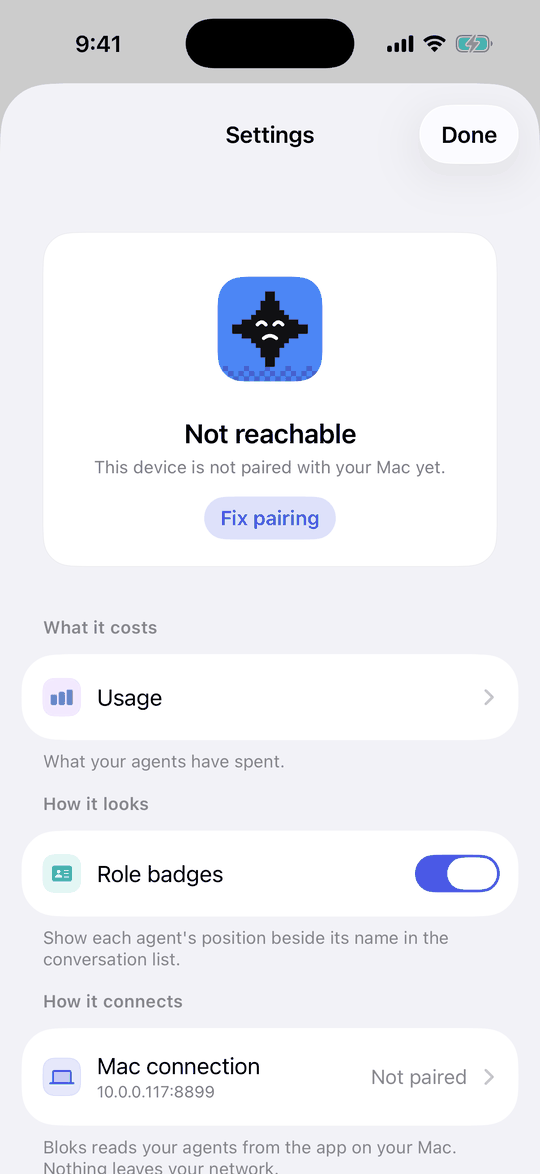
Settings, then Mac connection. 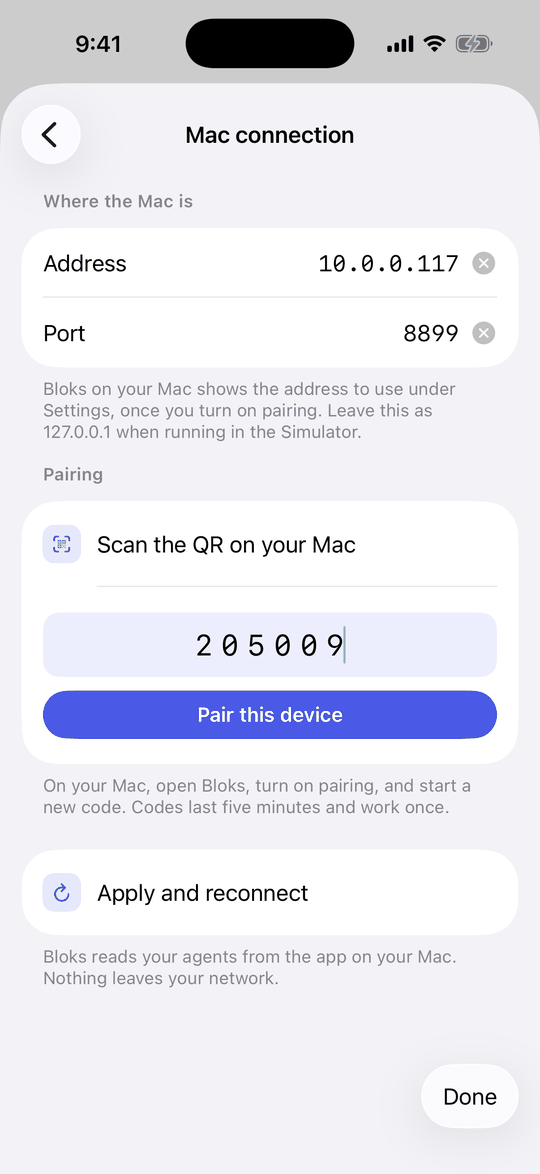
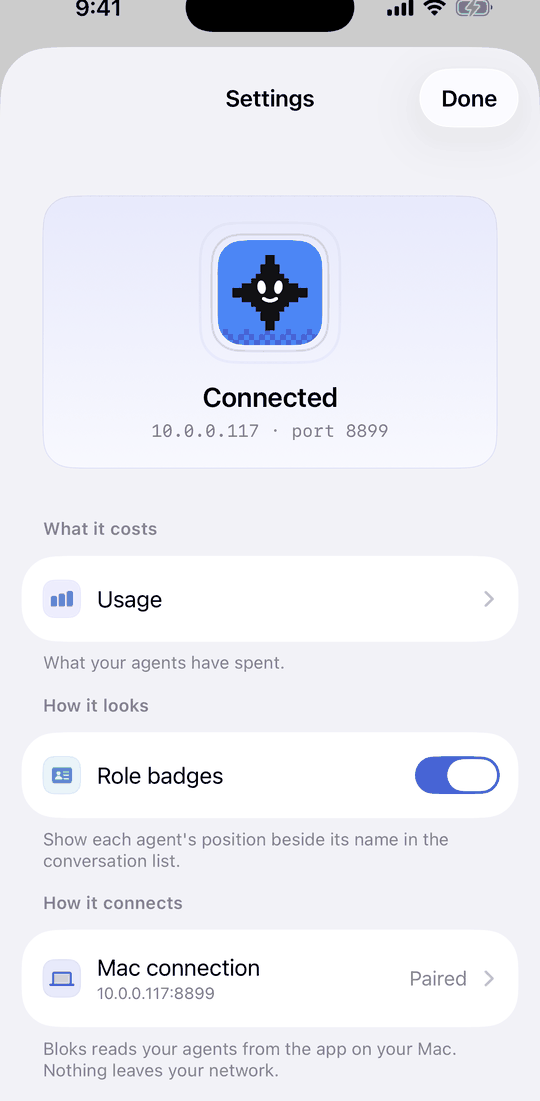
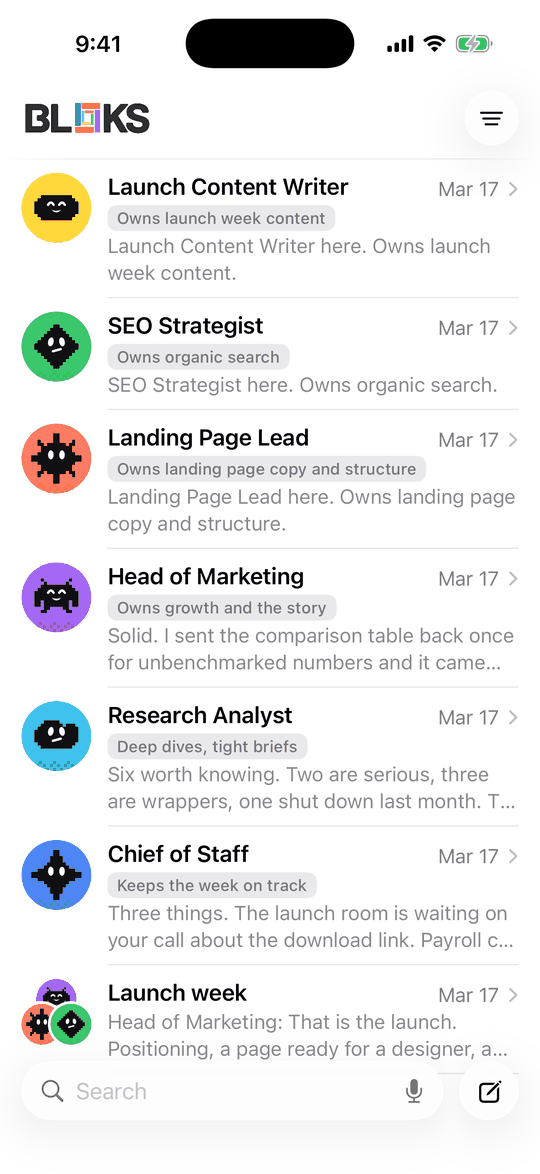
Address, port and code, then Pair this device. - That is it. Settings now says Connected, and your agents are on the phone.
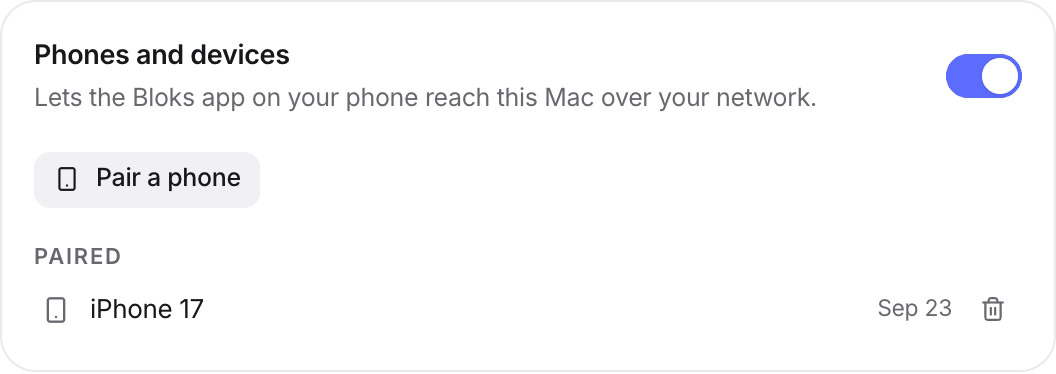
Back on your computer, the phone is listed under Paired. The bin icon beside it unpairs it; the phone stops reaching your computer straight away.
Away from home
Pairing works on your own wifi. Bloks Cloud carries the same connection from anywhere and buzzes the phone when an agent needs an answer. It buys reach and push, not hosting: your computer still runs the agents and still holds the keys.
If it does not connect
- “Not paired with your Mac yet” means the phone has no pairing, or it was unpaired on the computer. Start a new code and pair again.
- The code was refused. Codes last five minutes, work once, and a few wrong guesses close the window. Press Pair a phone for a fresh one.
- The phone cannot reach the computer. Check both are on the same wifi, not a guest network, which usually keeps devices apart, and that a VPN on either side is off. Make sure you pressed Restart now after switching pairing on.
- Your computer’s firewall. If you declined the incoming connections prompt, allow Bloks in your firewall settings (on a Mac, System Settings, Network, Firewall).
- It worked yesterday and not today. Your computer’s address can change when it rejoins the network. Enter the new address under Mac connection and tap Apply and reconnect.
After pairing
Home screen widgets show who needs you and who is working, with the agents’ real faces, and a running task shows live in the Dynamic Island.
On the lock screen
New in Bloks 2. When an agent needs you, the notification says which agent, in which room, and what it wants: “Scout needs your approval: Bash: npm run deploy”. Those words are sealed on your computer for your phone alone and opened on the phone, so neither Apple nor Bloks Cloud can read them. Press and hold for Allow and Deny, which ask for Face ID first. iOS’s own Show Previews setting decides whether the words show while the phone is locked.
Send to Bloks, Siri and Shortcuts
New in Bloks 2. In any app’s share sheet, choose Bloks to send a link, a page or some text to an agent, with a line about what you want done with it. Or ask Siri: “Ask Scout in Bloks”. The same Ask an agent action is in the Shortcuts app and can go on the Action Button. It lands in that agent’s conversation on your computer, without opening the app.
Brief, watchers and notes on the phone
New in the iPhone app 2.1, with Bloks 2.3 on your Mac. The menu in the top corner opens the Morning brief, with Listen to hear it read aloud and Allow or Deny for anything waiting; Watchers, to pause one or look now; and About you, to keep or dismiss what your agents suggest. The brief's notification opens it directly, and “What’s my brief in Bloks” asks Siri for the headline.
On Apple Watch
Bloks comes to your watch with the iPhone app: who is working, what is waiting on you, and the brief's headline. An approval can be answered from the wrist: Allow or Deny goes through your iPhone to your Mac, the same way the lock screen buttons do. Questions that need words stay on the phone.
Use Bloks in a browser
New in Bloks 2. A server running bloks-server 1.11 or later already makes links that open here.
With Bloks Cloud, the app you use on your computer also opens in any browser, on a work laptop or a friend’s machine, at bloks.dev/web. Your agents keep running on your own computer; the browser reaches them the way your phone does.
- On your computer, open Bloks and go to Settings, Phone and devices. Turn on Phones and devices if it is off.
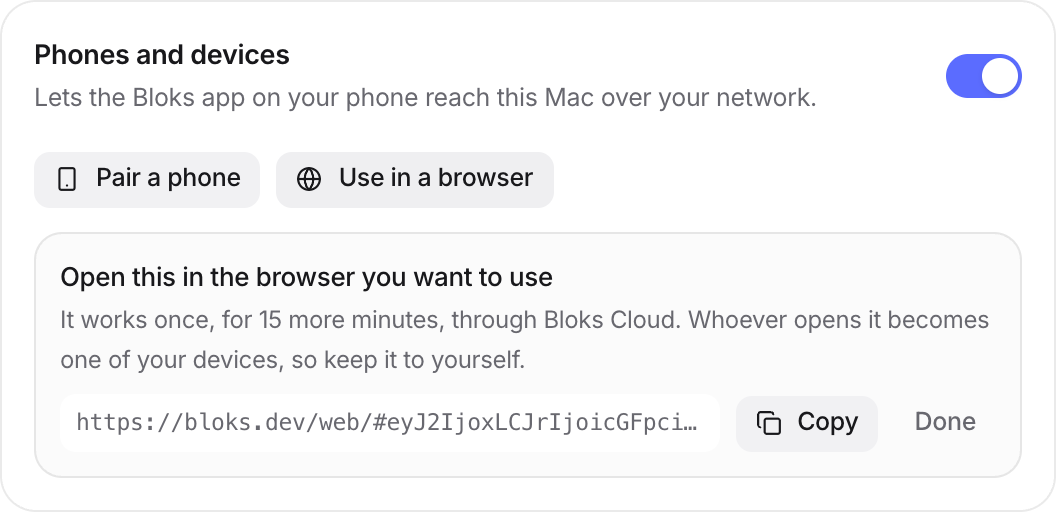
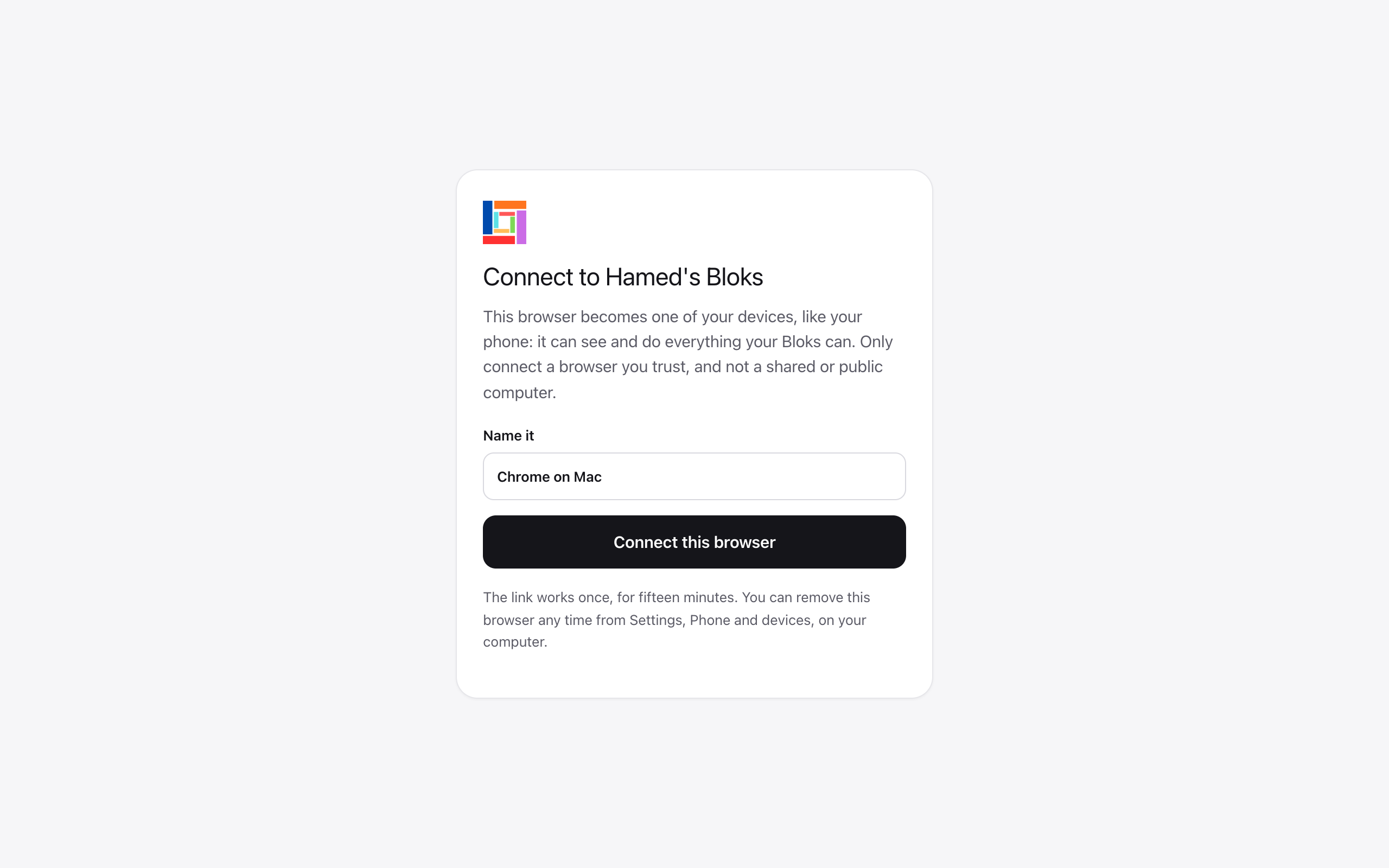
- Choose Use in a browser. Bloks makes a link that works once, for fifteen minutes. Open it in the browser you want to use.
- Name the browser and choose Connect this browser.
- That is it. The same app, the same agents, the same approvals and undo.
- Sealed in the browser. Every request is sealed on your side for your computer alone and opened only there. bloks.dev serves the page and never sees what it carries. The browser keeps two keys that cannot be copied out of it, and not the pairing itself.
- Only browsers you trust. A connected browser can do everything your Bloks can, like your phone. Do not connect a shared or public computer.
- Leaving. Disconnect from Settings, Phone and devices in the browser, or remove it from the paired list on your computer, which ends it everywhere at once.
- What stays on the computer. A few things need the computer in front of you: pairing new devices, choosing folders, and a live terminal.
Running Bloks on a server? bloks-server pair prints a link, and its page offers Use it in this browser.
Always on: Bloks on a server
Bloks runs on your computer, so when it sleeps your agents stop. To keep them working, run Bloks on a computer that never sleeps: a small rented Linux server, a Mac mini, a home server. Your laptop, your phone and the people you share rooms with then use that one Bloks through Bloks Cloud. It needs Bloks Cloud, and nothing else.
- Download bloks-server from the latest release onto that computer and unpack it. It needs Node 22.6 or newer. A Dockerfile and a systemd unit are inside if you prefer those.
- Start it with
node bin/bloks-server.mjsand keep it running (Docker, systemd, tmux, whatever the machine already uses). It listens on the machine itself only and opens no port. - In a second shell on that computer, turn on Cloud with
node bin/bloks-server.mjs activate blok_live_..., using your licence key. - Run
node bin/bloks-server.mjs pair. It prints a link that works once, for fifteen minutes. - On your laptop, open Bloks, go to Settings, Phone and devices, Where your Bloks runs, paste the link and choose Use that Bloks. The app restarts connected to your server: the same app, your agents living on the server.
Agents run on the engines installed on the server. Install and sign in to Claude Code or Codex there, or give your agents API keys from the app. To go back to the Bloks on your laptop, choose Use this computer's own Bloks instead in the same place; nothing on either computer is deleted.
If you stay on a laptop, Bloks keeps it from dozing off while an agent is working, and if it does sleep in the middle of a task, the agent picks up where it left off when you are back.
Your data
One folder: ~/.bloks. Agents, conversations, memory, keys, settings, artifacts. Back it up and you have backed up Bloks; move it to a new Mac and your agents come with you; delete it and Bloks has genuinely forgotten you. Keys are stored with owner‑only file permissions and are never echoed back to any screen once saved. The full story is on the privacy page.